Log in to the panel
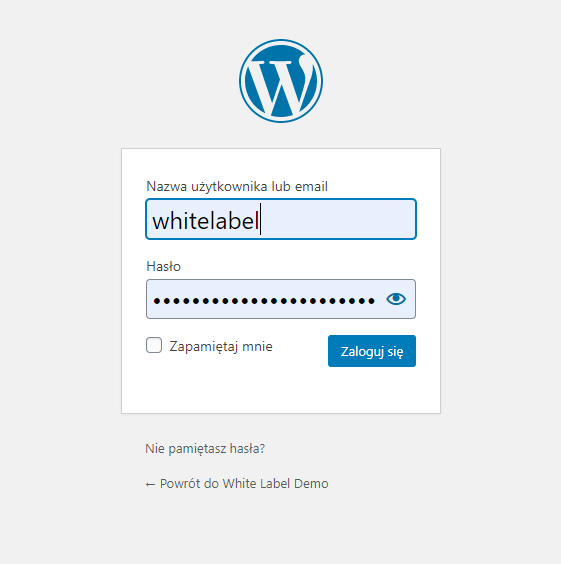
Your White-Label website uses customised WordPress CMS. To log-in to your Admin-Panel use link: you-website-name/wp-admin
Navigating the panel
If you are logged in, you should see your admin dashboard. If you’re not seeing it, enable it in „Screen Options” menu at the top bar.
When you click on „View Website” toolbar, you can see your website frontend. You can always return to your panel when you click „Main Admin Panel” on toolbar.
Show all pages view
When you click „Show All Pages” you can view list of all subpages published on your website. Here you can create new pages, edit current pages and delete them. When you click page-name on the list, an editor window popsup.
Additionally, you can duplicate your existing subpage.
Show all news view
When you click „Show All News” you can view list of all news published on your website. Here you can create new news-posts, edit current posts and delete them. When you click post-name on the list, an editor window popsup.
Additionally, you can duplicate your existing news-post.
Show All Media Files
When you click „Show All Media Files” you can view list of all images, documents and other files uploaded to your website server. Here you can upload new files, edit current files and delete them.
Show All Reusable Blocks
When you click „Show All Reusable Blocks” a list of pre-defined blocks will appear.
Gutenberg blocks are the editor blocks that are used to create content layouts in the new WordPress block editor aka Gutenberg. Introduced in WordPress 5.0, the Gutenberg editor is a fully block-based editor where each piece of content is a draggable and customizable block.
Gutenberg offers a set of content blocks like a paragraphs, images, buttons, lists, and many more.
In the Reusable Blocks section you can modify permanent sections of website such as menu, footer and slider. We’ll describe them later in this guide.
Below is a example of using pre-defined block in new post: